
Start
Getting started
Create an account, connect your reMarkable with a one-time code from my.remarkable.com, choose your style and send your first note.
1. Create your account
Go to remarkify.app/onboarding and sign in with Apple or Google. The Chrome extension and the iPhone app use the same account, so sign in with the same provider everywhere. New accounts get 5 free sends, no card needed.
2. Connect your reMarkable
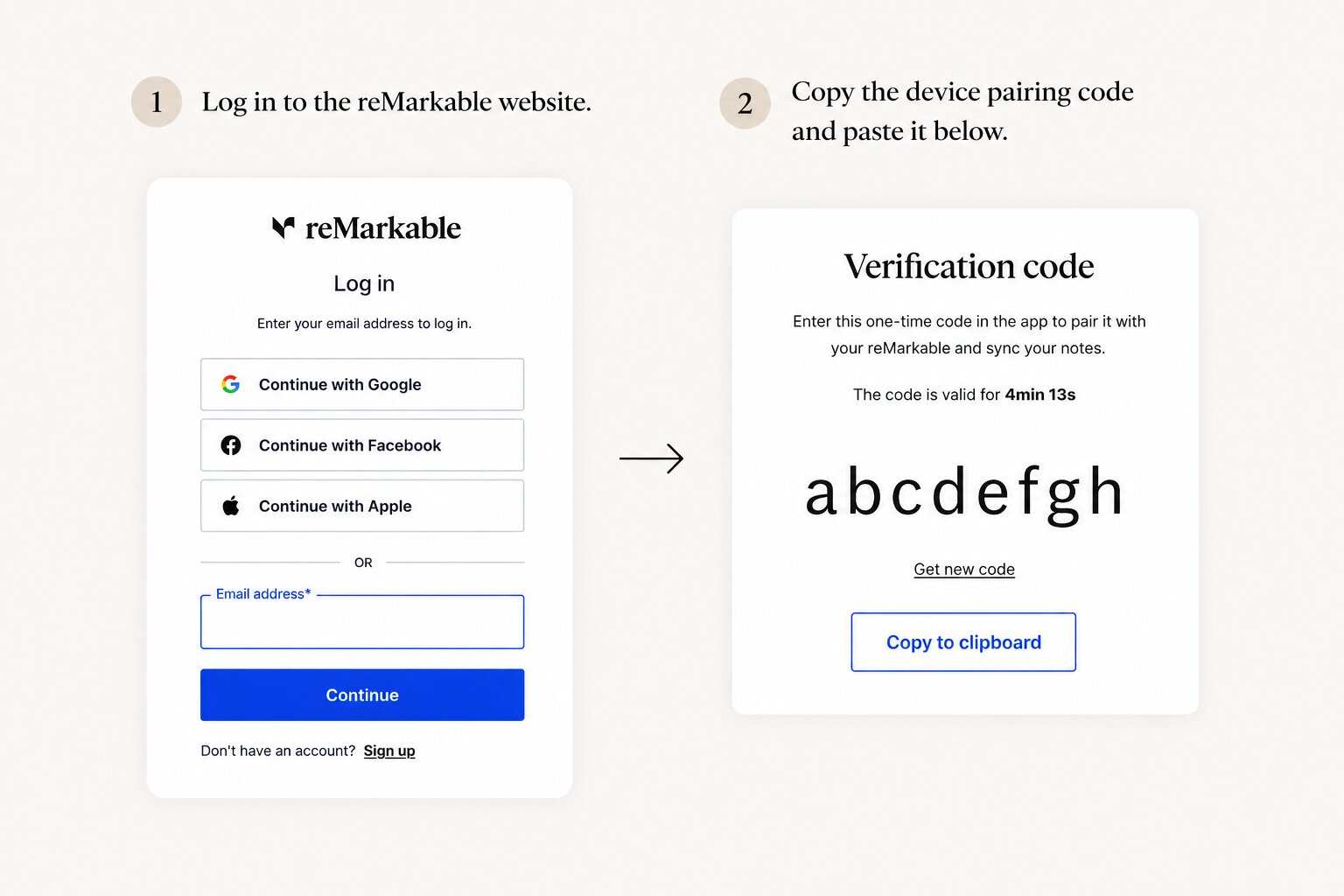
Remarkify delivers notebooks through your reMarkable cloud account, the same way the reMarkable desktop app does. You connect it once with a one-time code:
Open the reMarkable pairing page
Go to my.remarkable.com/device/desktop/connect and sign in with your reMarkable account.
Copy the eight-letter code
The page shows a one-time code of eight lowercase letters. It is only valid for a short time, so paste it right away.
Paste it into Remarkify and pick your tablet
Choose reMarkable 1, reMarkable 2, Paper Pro or Paper Pro Move, so pages are laid out for your screen. Connecting can take up to 30 seconds.
3. Choose how it looks
Open Preferences to set your defaults. Every send uses them:
- Font family and size: pick a handwriting font, or capture your own handwriting.
- Pen type and pen color: the reMarkable pen the strokes are drawn with, in one of 9 ink colors.
- Line spacing and automatic pagination (page breaks for long text).
- Notebook name: a template for the document title built from the site name, page title, date and time.
- Include images and the image style. See Images.
4. Send something
Pick whichever is closest to hand:
- On a computer: select text on any page, right-click, Send to reMarkable. See Chrome extension.
- On iPhone or iPad: tap Share in Safari or any app, then Remarkify. See iPhone and iPad.
- From scratch: write in the Text Editor on the web or in the app.
The notebook appears at the top level of your reMarkable library as soon as your tablet syncs. Everything you send is also listed in History, where you can open or resend it.