Features

Images

Bring photos along to your reMarkable, redrawn as pen strokes in one of five drawing styles or embedded as the original image.

When a selection, a shared page or an editor note contains photos, Remarkify can bring them along. Drawn styles turn each photo into pen strokes that sit on the page like the rest of your notes; Native embeds the original image instead.

Turn images on

In Preferences, switch on Include images and pick a style. The example photos above the style list update as you choose, so you can see how each style lands on paper. In the iPhone app the same settings are under Account → Writing style. Photos you add in the Text Editor use the same style.

The six styles
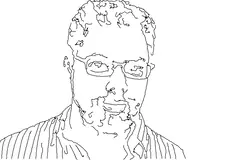
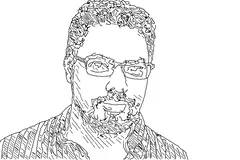
Portrait example in the Contour style
ContourConfident single-weight outlines. The lightest, cleanest read on paper.Use it for: Diagrams, logos, product shots and anything with clear shapes. The lightest look on the page.
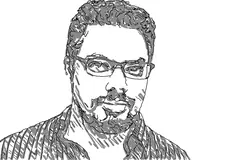
Portrait example in the Sketch style
SketchOutlines plus loose directional shading — a quick pencil study.Use it for: A good default for most photos. Reads like a quick pencil study.
Portrait example in the Crosshatch style
CrosshatchLayered cross-hatching builds tone and depth, like an engraving.Use it for: Portraits and objects where tone and depth matter.
Portrait example in the Ink wash style
Ink washFew strong lines over soft grey marker fills for a painted feel.Use it for: Landscapes and scenes where you want mood more than detail.
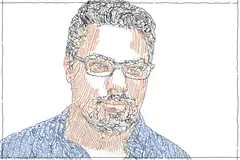
Portrait example in the Colored hatch style
Colored hatchDense hatching with muted colour ink — closest to the original photo.Use it for: Closest to the original photo, drawn in reMarkable's color inks. Best on Paper Pro.
Portrait example in the Native style
NativeEmbeds the untouched photo. No strokes, full detail and colour.Use it for: When you need the photo exactly as it is: charts, screenshots, maps. It is an embedded image, not strokes.

Color and grey

reMarkable Paper Pro and Paper Pro Move show color, so Colored hatch and Native keep their colors there. On reMarkable 1 and 2 everything shows in black and greys. Set your tablet under device type so pages are laid out for the right screen.

Editing images on the tablet

Drawn styles are ordinary strokes: you can lasso, move, resize or erase parts of them like anything you wrote. A Native image is one embedded picture rather than strokes, so it can't be erased stroke by stroke.